Showing posts with label hudson. Show all posts
Showing posts with label hudson. Show all posts
Sunday, February 5, 2017
Guide to building NET projects using Hudson
Guide to building NET projects using Hudson
In this guide Im going to show how to set up a C# project on the Continuous integration server Hudson. Ive been using Hudson on .NET projects since september and it works really well. Im going to use Media Portal as the example project.

The below goals will be solved in this guide:
- Get the source code from the Subversion repository
- Link change logs to the repository browser using ViewVC
- Build the project using MBuild
- Run the tests using NUnit and display the results together with a trend graph
- Publish artifacts from the build (nightly builds)
- Run FxCop on an assembly and display warnings (linked with source code) and a trend graph
- Search the source code for TODO, FIXME comments and display the open tasks with links to the source code
Initial downloads
The following files are needed besides Java (at least 1.5). Get the latest version of all files and notice that the Hudson file has the extension .war and plugins .hpi. This guide assumes that MSBuild, NUnit and FxCop are already installed and working.
- Hudson server application (download)
- MSBuild plugin (download)
- NUnit plugin (download)
- Violations plugin (FxCop support among other such as Simian, CPD, PMD and PyLint) (download)
- Open Tasks plugin (download)
Installation steps
Im going to install Hudson into c:Program FilesHudson.
- Copy the hudson.war file to c:Program FilesHudson
- Start Hudson through "java -DHUDSON_HOME=data -jar hudson.war". Verify that you can access Hudson through http://localhost:8080
- Copy the plugins to c:Program FilesHudsondataplugins
- Stop Hudson by pressing Ctrl+C in the command prompt where you started Hudson.
- Start Hudson again and you should be set to go.
Hudson system configuration
Follow the following steps to configure the tools that Hudson will use in building MediaPortal.
- Go to the System configuration at http://localhost:8080/configure.
- MSBuild Builder - Set the path to the MSBuild tool to C:WindowsMicrosoft.NETFrameworkv2.0.50727msbuild.exe

MediaPortal job configuration
- Click the "New job" link at the home page.
- Enter the name "MediaPortal", check the "Build a free-style software project" and press OK.

Source code management
MediaPortal uses a Subversion SCM. Hudson supports CVS and SVN out of the box, but there are many plugins for other SCMs. After checking out the files from the repository Hudson will show the new change sets since the previous build in the Build page. A detailed view of change sets can be seen in the Changes page as the name of the developer, files that were changed and the comment for the change. Each change set is linked to the MediaPortal subversion repository browser, so it is easy to browse the actual file that changed.
- Press the Subversion radio button to configure the SCM.
- Repository URL=https://mediaportal.svn.sourceforge.net/svnroot/mediaportal/trunk/mediaportal
- Local module directory=.
- Press the Advanced button
- Repository Browser=ViewSVN, URL=http://mediaportal.svn.sourceforge.net/viewvc/mediaportal/

To test the configuration, press Save and then Build. The source code will be downloaded from the repository and put into the Workspace. If there were any changes in the SCM repository they can be viewed in the Changes page.

When the build is completed verify that it has checked out the code by going to the Workspace page. Using the Workspace page you can browse and view the files that has been checked out and it doesnt matter if the files are on the master or on a distributed slave!

Building the project
Im going to build a Release version of MediaPortal using MSBuild and the mediaportal.sln solution file. Hudson also supports NAnt and many other build tools through plugins.
- Click the "Add build step" and select "Build a Visual Studio project or solution using MSBuild."
- MsBuild Build File=mediaportal.sln
- Command Line Arguments=/p:Configuration=Release

To test the configuration, press Save and then Build. Now the source code should be updated if there any changes and then built using MSBuild. While the build is running you can check the Console log that is updated as the build continues.

Running unit tests and showing the result
Hudson can read NUnit XML reports and display the results of them for each build. If a test fails, then it will be displayed in the Status page. Hudson will also show how many builds ago a test failed (its age); that way it is simple to see if a test failed in the current build. If a build has at least one failing unit tests then the build will become Unstable (yellow); otherwise it is marked as Successful (blue). After two builds you will get a trend graph showing the test results over time. To run the NUnit tests, Im running nunit-console from Hudson after the MSBuild has compiled all files.
- Click the "Add build step" and select "Execute Windows batch command"
- Command=
"c:program files unit in unit-console.exe" MediaPortal.Tests inRELEASEMediaPortal.Tests.dll /xml=nunit-result.xml /config=test.config
exit 0 - Check the "Publish NUnit test result report" and enter "nunit-result.xml"

Start a new build, now the unit tests will be run and their results are collected at the end of the build. When the build is completed, you can see how many tests there were, and how many failed, in the build in the Status page.

More information on namespace detail can be shown in the Test result page.

The test results are then displayed as a trend report. (This trend graph is copied from my python project, as it shows a variation over time)

Archiving build artifacts
It is good to archive the outputs (artifacts) from the build, so they can be retrieved later. This way it is possible to get a version of MediaPortal that was built a week ago, and compare the functionality to one built today. Hudson can be configured to store any number of files for each build, it can also be configured so only the latest successful builds artifacts are stored. As Im not really sure what the output from MediaPortal is, Im going to show how to archive the files for the MPInstaller.
- Click the "Archive the artifacts".
- Files to archive = MPInstaller inRelease*

In the next build, Hudson will store all files in the MPInstaller release folder so it can be retrieved later even if there are newer builds available.

Analyzing code with FxCop
Hudson can collect output from several quality metric tools and show them for each build. Similar to the unit tests, they will be displayed in a trend graph. For .NET projects, it is good to use FxCop. FxCop analyzes managed code assemblies and can be very good to use but it may also generate too many warnings at start, in this example I will only use the security rules and analyze the Core.dll assembly.
- Click the "Add build step" and select "Execute Windows batch command"
- Command =
"c:Program FilesMicrosoft FxCop 1.35fxcopcmd.exe" /file:Core inReleaseCore.dll /rule:SecurityRules.dll /out:fxcop-result.xml
exit 0 - Check the "Violations" check box, and set fxcop=fxcop-result.xml

Next build will take considerate longer time, as FxCop goes through the assembly and analyzes it to find potential problems. When the build finishes, you will see a nice summary on how many violations there are in the current build.

Finding source code comments
A nice plugin is the Tasks plugin as it will go through the sources, and find specific comments that should be watched. In this example Im going to search for TODO or FIXME comments,
- Click the "Scan workspace for open tasks".
- Files to scan = **/*.cs
- High priority=FIXME
- Normal priority=TODO

If the plugin finds any comments in the source they will be displayed in the build page.

There will also be a trend graph so it is possible to monitor that the tasks are decreasing over time. Together with the summary on what comments were found, the full source code can be viewed.


Summary
I hope this was a useful guide to start building .NET projects with Hudson, one of the many CI servers. As shown above it does not take much configuration to start building a project using Hudson. The best way to start using continuous integration is to start building the project. Then focus on running unit tests and other quality metrics so you can monitor the quality progress on your project.
Currently there are some plugins in the pipeline that could be interesting for .NET developers:
- A SCM implementation for Microsofts Team System
- Support for CodePlex issues and Wiki words in change set comment. And a very simple configuration to check out code from a CodePlex project
- Support for displaying coverage stats using NCover and MS own coverage tool
Available link for download

Tuesday, January 31, 2017
Grails plugins on Hudson
Grails plugins on Hudson
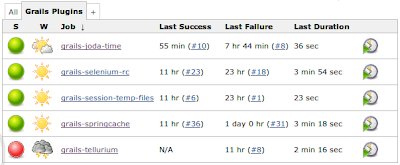
Each plugin has one or more test applications under
test/projects each of which has grails.plugin.location.whatever = "../../.." in BuildConfig.groovy. So each plugin CI build needs to run not only the plugins own unit tests but any integration and/or functional tests included in the test apps as well.Hudson plugins
I installed the essential plugins I would need:- The Grails plugin makes building Grails projects much easier and allows you to build against multiple versions of Grails.
- The Git plugin enables Hudson to pull from a Git repository such as GitHub.
- The GitHub plugin adds links to the GitHub project in the Hudson build.
- The Chuck Norris plugin encourages you to keep your tests from failing.
Configuring Grails
Under Manage Hudson -> Configure System there is a Grails Builder section where I entered the name and path of the various versions of Grails installed on the build box.Connecting to GitHub
In the project configuration:- I pasted the GitHub project URL in the Github project field (shown if you have the GitHub plugin installed).
- Under Source Code Management I selected Git then pasted the read-only repository URL into the URL of repository field.
- I entered master in the Branch Specifier field as Ive seen Hudson do odd things picking up changes from other branches before. I dont really need this behaviour and havent had time to investigate it further yet.
- I ticked Poll SCM under Build Triggers then set a cron expression of
*/5 * * * *so Hudson will poll GitHub every 5 minutes.
Grails build steps
- Select Build with Grails from the Add build step drop down, then:
- Select the Grails Installation you want to use.
- Enter the Targets to run. These are the Grails commands that Hudson will execute. For example, I entered
"test-app unit: -clean --non-interactive" package-pluginfor the to run unit tests then package the plugin. The quotes allow arguments to be passed to individual targets so Im telling the test-app phase to build clean and run non-interactively (i.e. Grails wont ask about things like installing or uninstalling plugins). - The other fields can be left blank for now.
- Add further Grails build steps for test applications. The only difference in configuring these is that the targets will likely be different and Project Base Directory needs to be set to the relative path where the test apps lives, e.g.
test/projects/content-caching
Isolating each build
One thing I found is that its probably a good idea to specify separate working directory for each build. I found that simultaneous builds would stomp over each others compiled classes otherwise. This is particularly an issue for me where I have a build for the Selenium RC plugin whilst one of the test apps for the Springcache plugin uses the latest Selenium RC release to run tests.Hudson provides various environment variables so I just set grails.work.dir to
/tmp/.grails/${JOB_NAME} in every case.The other consideration is the port that Grails applications will use. If you are running any kind of functional tests the Grails application will start and it each Hudson job needs to use a separate server port or simultaneous jobs will experience port contention. The server port is also configured in the Grails build step. Ive just assigned a different one to each job but I couldnt think of a particularly clever way to automate the port assignment.
Test reports
Under Post-build Actions I ticked Publish JUnit test result report then entered a comma-separated set of paths to the XML reports generated by each build step. For example, the Springcache plugin has the following reports configured:target/test-reports/*.xml,test/projects/springcache-test/target/test-reports/*.xml,test/projects/content-caching/target/test-reports/*.xml
Thats picking up the root plugins unit test reports and the reports generated by the springcache-test and content-caching test applications. Hudson does a good job of merging these together into a unified test report.
Running tests that need a browser
Some of my tests use Selenium RC which drives a real browser. Given that Hudson is running on a headless box I had to get the display exported to a box with an X Windows environment.Still to do
Right now all the plugins are building against Grails 1.2.1 only so the next task is to set up parallel builds using Grails 1.3-RC1. Ideally I would like to use Hudsons multi-configuration project capability to do that but I havent had a chance to look into it yet. Id also like to use Gradle to build the various project with one build step but Id lose the convenience in switching Grails versions that the Hudson Grails plugin gives me.Available link for download
Thursday, January 26, 2017
Git and Hudson
Git and Hudson
I just encountered a rather annoying problem when running Hudson as a service on Ubuntu. I was getting the following exception whenever the build checked code out of GitHub:
hudson.plugins.git.GitException: Could not apply tag hudson-Selenium_RC_Plugin-23It turns out Git needs a username to be set and the hudson user that the Debian package creates when Hudson is installed doesnt have one. Easily fixed by using
at hudson.plugins.git.GitAPI.tag(GitAPI.java:265)
sudo nano /etc/passwd to add Hudson,,, into the hudson users entry (if you look at your own entry you should see where it needs to go).Available link for download
Subscribe to:
Posts (Atom)